SEO
Setting up Google Analytics 4 and Search Console for your business site
Two free Google tools show you who visits, where they come from and what they do. How to set them up properly and which numbers actually matter.
By Zafirox Tech Team · · 4 min read
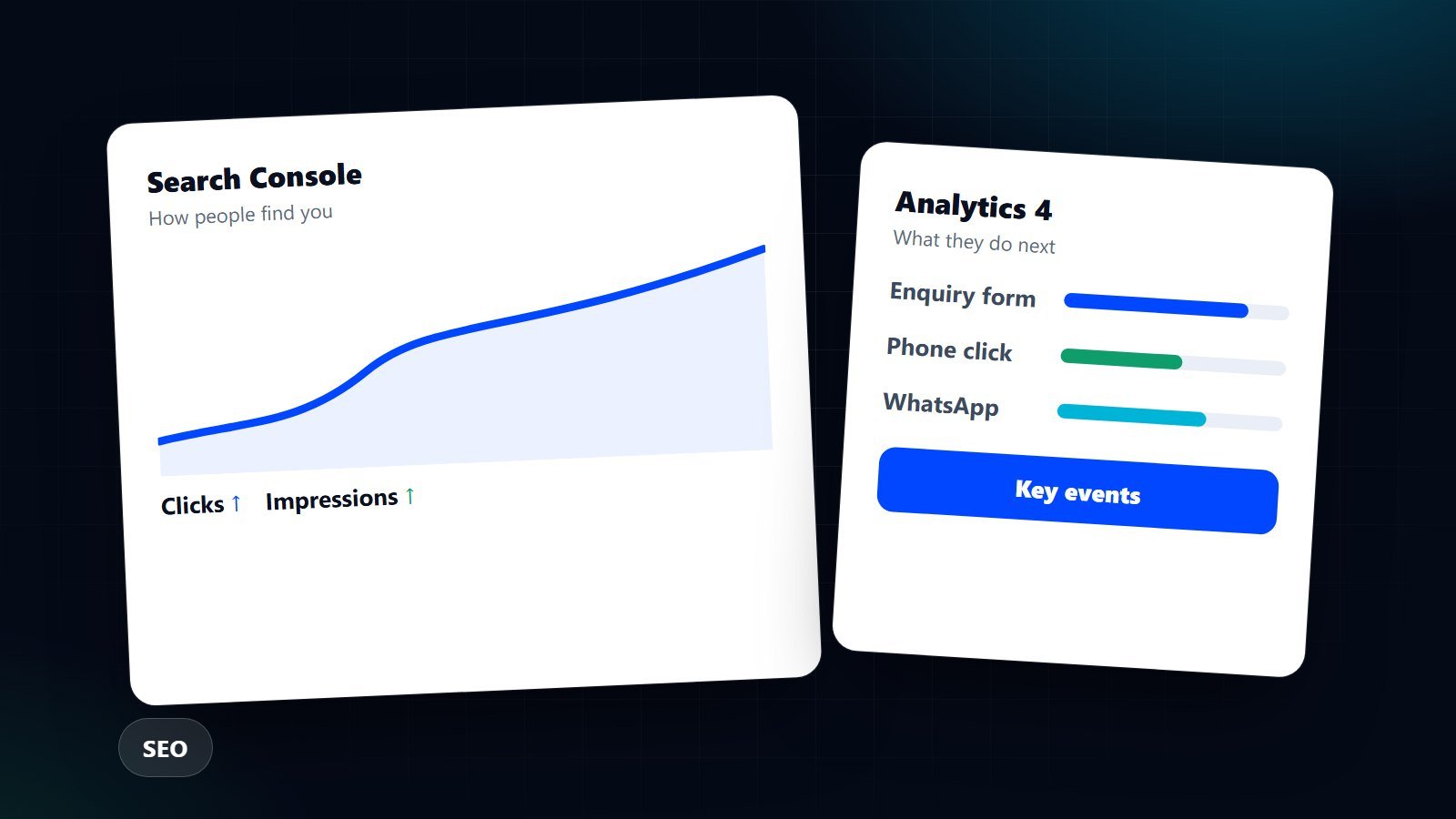
If you do not measure your website, every decision about it is a guess. Two free Google tools answer different questions. Google Search Console tells you how people find your site in Google search. Google Analytics 4 (GA4) tells you what they do once they arrive. You need both, and setting them up properly takes less than an hour.
What each tool is for
- Search Console: which searches show your pages, how often you appear, how often people click, which pages Google has indexed, and any technical problems it found.
- GA4: how many people visit, which channels they come from (search, social, email, direct), which pages they view and which actions they take, such as sending an enquiry or buying.
Think of Search Console as the shop window and GA4 as the shop floor.
Setting up Search Console
- Sign in with a Google account that your business controls, not a freelancer's personal address, so you never lose access.
- Add your site as a Domain property if you can edit your domain's DNS records, because it covers every version of the address. Otherwise use the URL-prefix option with the full address including https.
- Verify ownership. The DNS record is the most reliable method. Your web developer can also add a verification tag to the site.
- Submit your sitemap, which is normally at
/sitemap.xml. Look for "Sitemaps" in the menu. - Give access to anyone who needs it, such as your agency, using their own account rather than sharing yours.
Data takes a few days to appear and it only starts from the day you verify, so do this as early as possible, ideally before launch.
Setting up GA4
- Create a GA4 property in Google Analytics and add a web data stream for your site address. Google gives you a Measurement ID that begins with
G-. - Add the ID to your website. Many platforms have a field for it. Your developer can also add the tag directly.
- Respect consent. In the UK and EU, analytics cookies generally need the visitor's agreement before they are set. Make sure the tag loads only after consent where required. See our cookie and consent guide for the details.
- Open the Realtime report, visit your own site on a phone and check that you appear. That is your proof it works.
- Exclude your own team's traffic if you can, so internal visits do not skew results.
Tell GA4 what success looks like
By default GA4 records page views and a handful of automatic events. It does not know that a form submission matters more than a page view. You decide which actions count, then mark them as key events (called conversions in older guides). Typical ones for a service business are:
- Enquiry or quote form submitted.
- Click on the phone number or email link.
- Click on the WhatsApp button.
- Booking completed.
For an online shop add the purchase event and, if your platform supports it, add-to-cart and begin-checkout. Shopify, WooCommerce and most form plugins can send these events for you. If you are not sure, ask your developer to confirm that each one fires once per real action, and test by performing it yourself.
Connect the two tools
In GA4 admin you can link your Search Console property. That lets you see in one place which search queries lead to pages that then produce enquiries. It is worth the two minutes it takes.
The few numbers worth checking each month
- Organic clicks and impressions (Search Console). Rising impressions with flat clicks means your titles need work.
- Top queries and pages (Search Console). What are people looking for, and are you answering it?
- Users by channel (GA4). Where do visitors come from, and is any single source doing most of the work?
- Key events and how many came from each channel (GA4). This is the number that links marketing to money.
- Top landing pages (GA4). Which pages bring in the first visit, and do they lead to an action?
- Indexing and page experience problems (Search Console). Fix anything flagged as an error.
Common mistakes
- Tracking with two different GA4 tags on the same page, which double-counts.
- Never marking a key event, so the reports are full of visits but empty of results.
- Staging sites sending data into your live property. Keep test sites out of it.
- Obsessing over daily changes. Compare months, or the same month a year earlier.
- Ignoring privacy. Collect only what you need and explain it in your privacy policy.
Good measurement is the foundation of everything in our digital marketing strategy work: once you know what brings customers in, you can spend your time and budget there. If you would like us to check your current setup, contact us.